


I tested Mp4 to Mp3 - Convert Video to as the kind of utility people usually install for one clear reason: they have a video file and want an audio version they can manage more easily. It belongs to the Video Players & Editors category, but its appeal is less about watching video and more about handling personal media. I found it most useful when I needed to extract sound from a saved MP4, trim a short section for a ringtone, or tidy a small music collection without opening a full desktop editor.
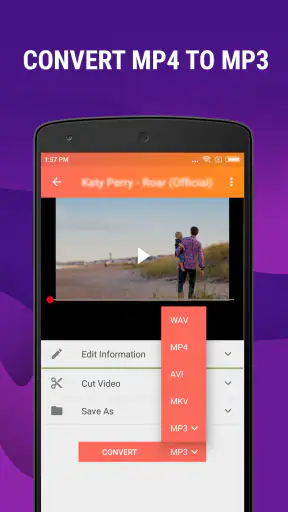
The app is free to download and is made by HGPUBLISHING LIMITED. Its store summary points to three jobs: converting MP4 or M4A files into MP3, cutting ringtones, and organizing music. That combination makes it more practical than a converter that stops immediately after exporting a file. At the same time, it is important to approach it as a focused file utility rather than a complete music production tool. I would recommend it to someone who wants a straightforward conversion workflow on an Android phone, not to someone looking for advanced mixing, multitrack editing, or a broad media library.
How it fits into a shared household phone
A realistic household example is a shared tablet or family phone containing clips from a school event, a family recording, or an old video copied from another device. One person may want the picture, while another only wants the spoken message or music. In that situation, this app can provide a simple handoff: select the video, create an audio file, and leave the original untouched for the next person.
I like this kind of narrow purpose because it reduces the number of decisions. You do not need to open a large editor, create a project, choose a timeline format, and then work out how to export audio. The useful question is simply which file should become audio and where the result should be saved. For occasional household use, that can be less intimidating than a professional editor.
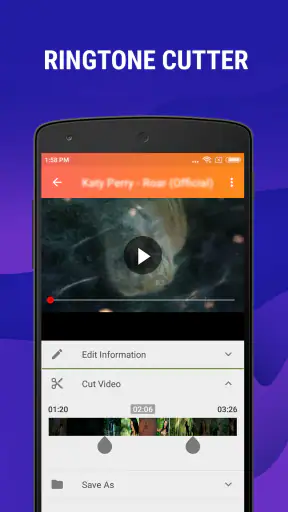
The ringtone cutter adds another shared-device use case. A family member might want a short portion of a recording as a personal ringtone, while someone else may prefer to keep the full audio. Cutting a copy rather than editing the original is the safer workflow. I would first convert or select the source, make the short version, listen to it from beginning to end, and only then assign or share it. That extra check matters because a ringtone that begins too quietly or ends abruptly can be annoying even when the original recording sounds fine.
The best household habit is to treat every export as a new copy, not as a replacement for the source. This keeps the original video available for other users and makes it easier to undo a rushed trim. It also prevents a shared device from becoming confusing when several people are working with similar-looking files.
What happens during setup
The app is aimed at Android devices running Android 7.0 or newer, so compatibility is worth checking before anyone in the household depends on it. Its current version is 1.5.5.4. On a supported phone, I would begin with a small, unimportant clip rather than a one-of-a-kind family recording. That first test helps confirm that the chosen file is visible, that the output is easy to find, and that the result plays correctly in the phone’s usual audio player.
The basic workflow is easier to understand if you separate it into three stages: source selection, conversion, and inspection. First, choose the MP4 or M4A file you actually intend to process. Second, create the MP3. Third, open the exported file and check its sound, length, and name. Skipping the last step is the most common way to discover later that the wrong clip was selected or that a short ringtone was cut from the wrong section.
For a shared device, file naming deserves more attention than it usually receives. A name such as “audio” tells nobody which recording it is. Adding a simple description before or after conversion makes coordination easier when several people use the same phone. I would use names based on the event or person, while avoiding private details if the phone is regularly borrowed by others.
The app’s free access makes it easy to try without committing money immediately. However, in-app purchases are listed from $6.49 to $29.99 per item, so I would review any purchase screen carefully before confirming anything. This is particularly important on a family device where different people may tap through the same interface. The price range is not a reason to reject the app, but it is a reason to keep purchasing decisions with the device owner rather than treating every user as equally authorized.
Boundaries between household users
This is not an app I would hand to a young child without an adult explaining the workflow first. The age rating is Everyone, which makes it broadly suitable in content terms, but an age rating is not the same thing as a complete household permission system. The app handles media files, and the real responsibility is deciding which recordings may be copied, trimmed, or shared.
A useful boundary is to keep personal recordings in clearly named folders before opening the converter. That reduces the chance of selecting a private voice note, an unfinished clip, or somebody else’s material by mistake. It also makes the app easier to use for older relatives who may be comfortable choosing a file but less comfortable navigating a crowded storage view.
I would also agree on one simple rule: nobody deletes the original after conversion until the recipient has checked the MP3. This matters when the source is a video that cannot easily be recreated. The converted audio may be perfectly usable, but it is not a substitute for the original if later someone wants the picture, a different section, or a new export.
Another sensible boundary concerns copyright and consent. Converting a file you own or have permission to use is straightforward. Converting a clip found elsewhere does not automatically give permission to redistribute the audio. The app makes the technical step easy, but it does not settle the legal or personal question of whether the result should be shared.
Coordinating conversions without confusion
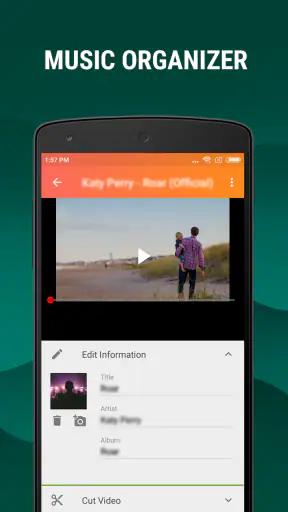
On a shared phone, the hardest part may not be conversion itself. It may be knowing which output belongs to whom. The music organizer aspect is helpful in principle because exported audio can otherwise disappear among downloads and recordings. Still, I would not rely on an automatic organization process without checking the result. After each conversion, play the file and confirm its title before moving on to the next one.
A small queue system works well for a family: one person chooses the source, another confirms the intended section, and the device owner handles any purchase decision. This is not a built-in family feature; it is simply a practical way to avoid accidental edits when several people are waiting for the same phone. For a single user, the same idea becomes a checklist: source, output, playback, then sharing.
The ringtone cutter has a specific trade-off. Shortening a file is convenient, but the best section for a ringtone is not always the loudest section. A spoken recording may need a little lead-in so the first word is not clipped. Music may need a clean ending rather than a sudden stop. I would make a first cut, listen through the phone speaker and headphones if available, and adjust only after hearing how it works outside the editor.
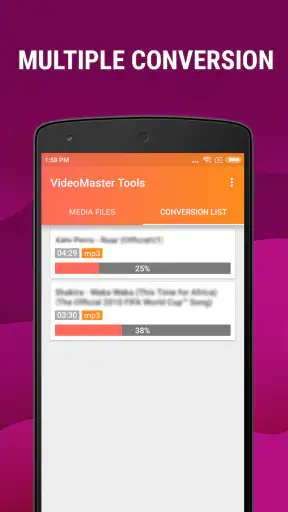
For longer recordings, I would be more cautious. A phone converter is convenient for a few selected files, but a large archive can become tedious to inspect one item at a time. If the goal is a carefully labeled collection with extensive metadata, a desktop music manager or dedicated batch-processing tool may be a better choice. This app’s strength is the quick, occasional job, not necessarily a large-scale catalog project.
Audio quality and file expectations
Because the central task is changing a video or M4A source into MP3, the output should be judged by the source and by the intended use. A ringtone, spoken reminder, or casual listening copy does not demand the same result as an archival master. I would avoid converting a low-quality source repeatedly, since changing formats cannot restore detail that was already missing.
The most sensible workflow is to keep the original source and create one MP3 for the actual purpose. If the result is for a car stereo, check it there rather than judging only through headphones. If it is for a ringtone, test the beginning and ending. If it is a spoken recording, listen for words that may be hidden by background noise. These checks are more useful than assuming every conversion will suit every device.
This is also where the app compares favorably with a full video editor for simple jobs. A conventional editor may offer more control, but that extra control can slow down a task that only needs audio extraction. On the other hand, a dedicated audio editor may be preferable when you need noise reduction, fades, equalization, or precise waveform work. I would choose this converter when speed and simplicity matter more than detailed sound treatment.
Privacy, trust, and age context
I would be comfortable considering it for ordinary household media, but I would still think carefully before processing sensitive recordings on any shared device. A converted file can be easier to play and forward than the original video, which means it may travel farther than intended. Voice messages, private conversations, and personal events deserve the same care as the source file.
The Everyone rating is reassuring for general content suitability, especially when the app is used for family recordings or harmless music files. It does not remove the need for adult guidance around sharing, storage, and purchases. A teenager may understand the conversion button perfectly well while still needing a reminder that a private recording should not be sent to a group chat without consent.
I also prefer using the app with a clear separation between public and private media. If a device is passed around often, keeping sensitive files out of a general downloads area is a better safeguard than expecting every user to recognize them correctly. This is a household practice rather than a feature claim, but it makes the app’s focused workflow safer and less stressful.
Who should choose it, and who should skip it
I would choose this app for someone who regularly receives MP4 clips and wants the sound saved as MP3, someone who needs a quick ringtone cut, or someone who wants a lightweight way to organize a modest set of audio files. It is also a reasonable option for an older Android phone that meets the minimum system requirement and is used for simple media tasks rather than demanding editing.
I would skip it if my main goal were professional audio work. There is a big difference between extracting sound and producing sound. Musicians, podcasters, and editors who need layered tracks, detailed cleanup, advanced fades, or precise production controls should look toward a dedicated audio workstation. I would also choose another option for a very large archive if batch handling, extensive tags, or computer-based file management were central to the job.
Compared with online converters, a phone-based tool can feel more convenient when the file is already stored locally and the task is personal. You avoid the extra step of uploading a recording and downloading it again. That is especially useful on a shared household connection or with private material. Online tools may still be preferable when you are working from a computer and need a one-off conversion without installing anything, but I would be more cautious with confidential recordings.
Compared with a full mobile video editor, this app is less capable but easier to approach for a single conversion. Compared with a basic file manager, it offers a more direct route to audio extraction and ringtone trimming. Its position between those alternatives is the reason it makes sense: it is not trying to replace every media tool, only to make a few common transformations less complicated.
What I would do before recommending it to a family
I would install it on the supported Android device, test it with a disposable clip, and establish a naming routine before processing anything important. I would show each household user how to identify the source file, where the output appears, and how to play the result. I would also make it clear that the original stays in place until the converted file has been checked.
For children, I would keep the task supervised when recordings involve other people. For older relatives, I would prepare a small folder with clearly labeled examples so the file-selection step is less confusing. For a shared phone, I would avoid leaving several half-finished exports with vague names. These small arrangements do more to improve the experience than searching for advanced settings that the household may never use.
The app has earned a 4.6 average from around 12 thousand ratings and has passed one million installs, which suggests that its focused approach has found a substantial audience. Those figures do not replace personal testing, but they fit what I experienced: it is built around a common task and does not require much explanation once the right file is selected.
Its free price is another advantage for trying the basic workflow, while the listed in-app purchase range means I would pay attention during setup and keep purchase authority with the owner of a shared device. The developer, HGPUBLISHING LIMITED, has kept the product’s identity clear: this is a practical converter with a few useful extras, not an all-purpose media suite.
My household verdict is positive with sensible limits. Mp4 to Mp3 - Convert Video to is a good fit when the job is to turn a local video into manageable audio, create a short ringtone, or keep a small collection easier to navigate. I appreciate that it can reduce a simple task to a few steps, and I find the ringtone and organization features more useful than a converter that only produces an output file.
I would recommend it to a friend who wants a focused Android utility and is willing to check files carefully before sharing or deleting anything. I would not recommend it as the only media tool for serious editing, large archives, or sensitive household recordings that require stronger separation between users. Used with clear file names, preserved originals, and a little supervision on shared devices, it is a convenient free starting point for everyday MP4-to-MP3 work.


